

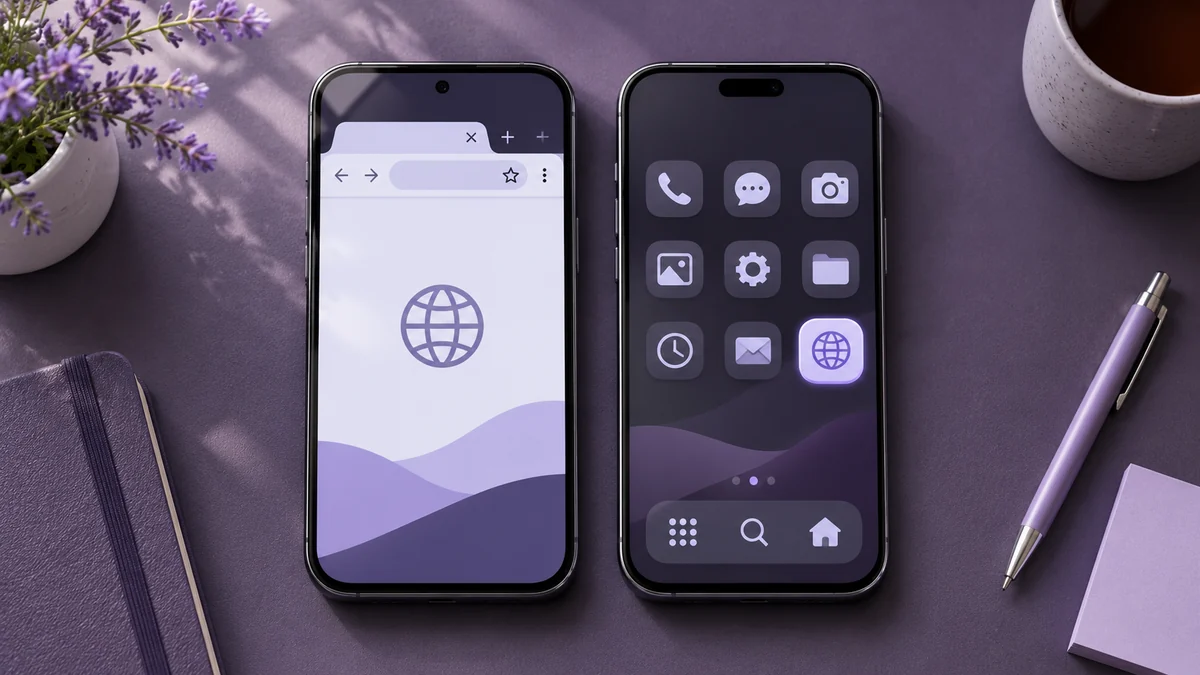
When you replace a phone, a familiar WABO icon may be missing or may reopen in a different view. A regular browser tab, a Home Screen web icon and a separately installed app can look alike once their screens are open. They can also have different permissions, saved pages and session behaviour. Work out which one you used on the old phone before deciding what to recreate on the new one.
Identify what the old icon opened
| Entry point | What to check |
|---|---|
| Browser tab or bookmark | The browser’s address bar shows the host and page path. Record a public information page you recognise. |
| Home Screen web icon | Check whether you created it from the browser. A site can open in its own window with little browser chrome. |
| Separately installed app | Check the app information or original store listing for its publisher and version. The icon artwork is only a visual clue. |
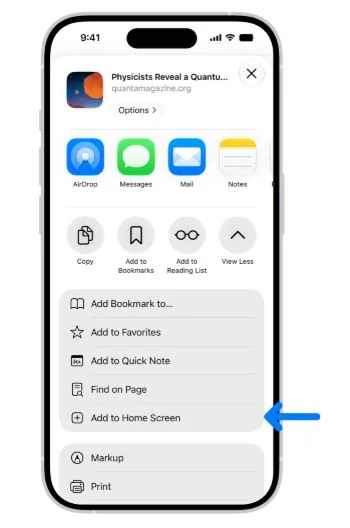
Apple’s iPhone guide describes how Safari can place a website icon on the Home Screen and open it as a web app. That helps explain why the same site can appear as a normal tab on one phone and a separate window on another. Apple’s guide to Safari bookmarks and Home Screen icons.
Start both phones from the same public page
On the old phone, open the familiar WABO MY information page in your browser and check the complete address. On the new one, compare the same public page in a normal browser tab. Note the host, language, region and any visible change to the menu. A mobile web page, sometimes described as H5 in support material, can use a different layout depending on screen width. Matching the page address gives you a useful starting point before you compare the layout or look for a missing menu.
For example, a Malaysian reader might have the same guide bookmarked on both phones, but the new phone opens with a different default language or presents an extra menu tap. Reopen the same public guide and use its visible language control. If ordinary pages match, focus on how the old shortcut was created and where the new one opens.

Check the missing feature in the right place
If the shortcut is missing, check bookmarks and Home Screen icons separately. If a pop-up notification changed, check which app or browser owns the notification before adjusting that permission. If the old device remained signed in and the new one shows a public view, treat that as a session difference. Follow the account provider’s verified help route for any account issue. Keep one-time codes and passwords out of migration notes and screenshots.
Test one change at a time. Repeat a simple action such as opening the same help article, switching language or returning to the homepage. This gives you a before-and-after record that can be checked without sharing an account page or changing permissions you do not need.
Keep a short device handover note
Write down the old and new entry points, the public page you compared, the visible language, the action that differed and when you tested it. For a browser tab, the public host and path are usually enough context. For an app, add the platform and visible version number. Keep the note free of sign-in URLs that contain personal parameters. With those details, you can explain whether a missing WABO shortcut, a browser layout or an account session changed during the move.
Related reading · WABO MY guide to checking a web address